
The problem: a hole where something used to be
Here is a photo with a clutter problem: a crumpled receipt and a set of keys sitting on the marble. Removing them is easy to ask for — but the moment you delete those pixels, you are left with a blank region. Something has to go there, and it has to look like the marble that was never actually photographed underneath.
This is the single most important idea on this page: inpainting does not recover what was hidden — it invents something plausible. The algorithm has no record of what the marble looked like behind the receipt. Every method below is just a progressively smarter way to make a convincing guess.
Not every watermark needs inpainting. When the mark is a known pattern — like Google Gemini's visible watermark — a deterministic Gemini watermark remover can reverse the exact blending math instead of guessing.

Attempt #1
Just copy the neighbors
The oldest trick is the simplest: fill the hole with pixels copied from right next to it. This is what a Photoshop clone stamp or healing brush does at its core — it samples one part of the image and paints it over another.
Try it yourself. Paint over the receipt below and watch what happens when the only rule is “borrow from just above.”
This copies pixels from just above the brush — the only trick a clone stamp knows. Watch the texture smear and repeat.
The result smears. Because the brush keeps dragging the same nearby texture downward, you get repeating streaks and obvious seams. It has no idea what a receipt is, what marble is, or that the two should not blend. It is moving pixels, not understanding them.
Attempt #2
Search the whole image for matching patches
The next leap, pioneered by exemplar-based methods and made fast by the PatchMatch algorithm, was to stop copying from right next door. Instead, for every little square you need to fill, search the entire image for the patch that fits best, and stitch that in. This is the engine behind Adobe’s Content-Aware Fill.
Press play and watch it hunt across the photo, sampling candidate patches and dropping the best matches into the hole.
Instead of copying from right above, this hunts the whole image for the best-matching patch — far smoother, but look closely and the seams still repeat.
Far better — the marble veins roughly continue and there are no harsh streaks. But it is still fundamentally a copy-paste machine. It can only reuse texture that already exists somewhere in the photo, and on complex scenes the repetition gives it away. It cannot invent a plausible object that was never in the frame.
The leap: teaching a model what the world looks like
Every method so far shares one limitation: it only knows this image. It shuffles existing pixels around because it has no concept of what marble, skin, sky, or text actually looks like in general.
Modern AI inpainting throws that constraint out. A neural network is trained on hundreds of millions of images until it has absorbed the statistics of the visual world — how light falls, how textures repeat, what a plausible continuation of a surface looks like. Now, instead of borrowing pixels, it can generate brand-new ones that fit the surrounding context, even if nothing like them appears elsewhere in the photo.
The payoff
Inside a diffusion fill, one step at a time
The dominant approach today is the diffusion model — the family behind Stable Diffusion and Adobe Firefly. The idea sounds almost paradoxical: to fill a hole, start by filling it with pure random noise, then remove that noise a little at a time. At each step the model nudges the region toward something that looks more like a real continuation of the photo, guided by the untouched pixels around it.
Drag the slider to scrub through the steps. The rest of the photo stays frozen; only the masked region — the old receipt — denoises from static into seamless marble.
A visualization of how diffusion denoising fills a masked region — drag to scrub through the steps.
← noise · step by step · clarity →
After enough steps, the noise is gone and what remains is a fresh, generated patch of marble that never existed in the original file. The model did not find it — it imagined it, constrained at every step to stay consistent with its surroundings.
The knobs that change everything
The same diffusion fill can behave very differently depending on a few settings. Two matter most:
Denoising strength
How much freedom the model gets. Low strength keeps it tethered to what was already there — good for fixing a small scratch. High strength lets it invent something entirely new — good for replacing an object, risky for subtle repairs.
What sits under the mask
You can tell the model to start from the original pixels under the mask (useful for recoloring or lightly altering an existing object) or from pure noise (useful for generating something completely new in that space).
The three approaches, side by side
| Approach | Used by | What it does | Breaks when |
|---|---|---|---|
| Clone stamp | Photoshop (manual) | Copies pixels from a nearby spot | Repeating streaks, visible seams |
| Patch search | Content-Aware Fill | Hunts for the best-matching patch anywhere in the photo | Can’t invent anything new; repetition on complex scenes |
| Diffusion | Firefly, Stable Diffusion, Erasio | Generates new pixels from noise, guided by surrounding context | Large masks or busy backgrounds can hallucinate artifacts |
When AI gets it wrong (and why)
None of this is magic, and it fails in instructive ways. The bigger and more ambiguous the masked region, the more the model has to invent — and the more room it has to hallucinate: extra fingers, warped text, a smear of texture that does not quite belong. Small, isolated objects over a regular background (like our receipt on marble) are the easy case. A person standing in front of an intricate building is the hard one.
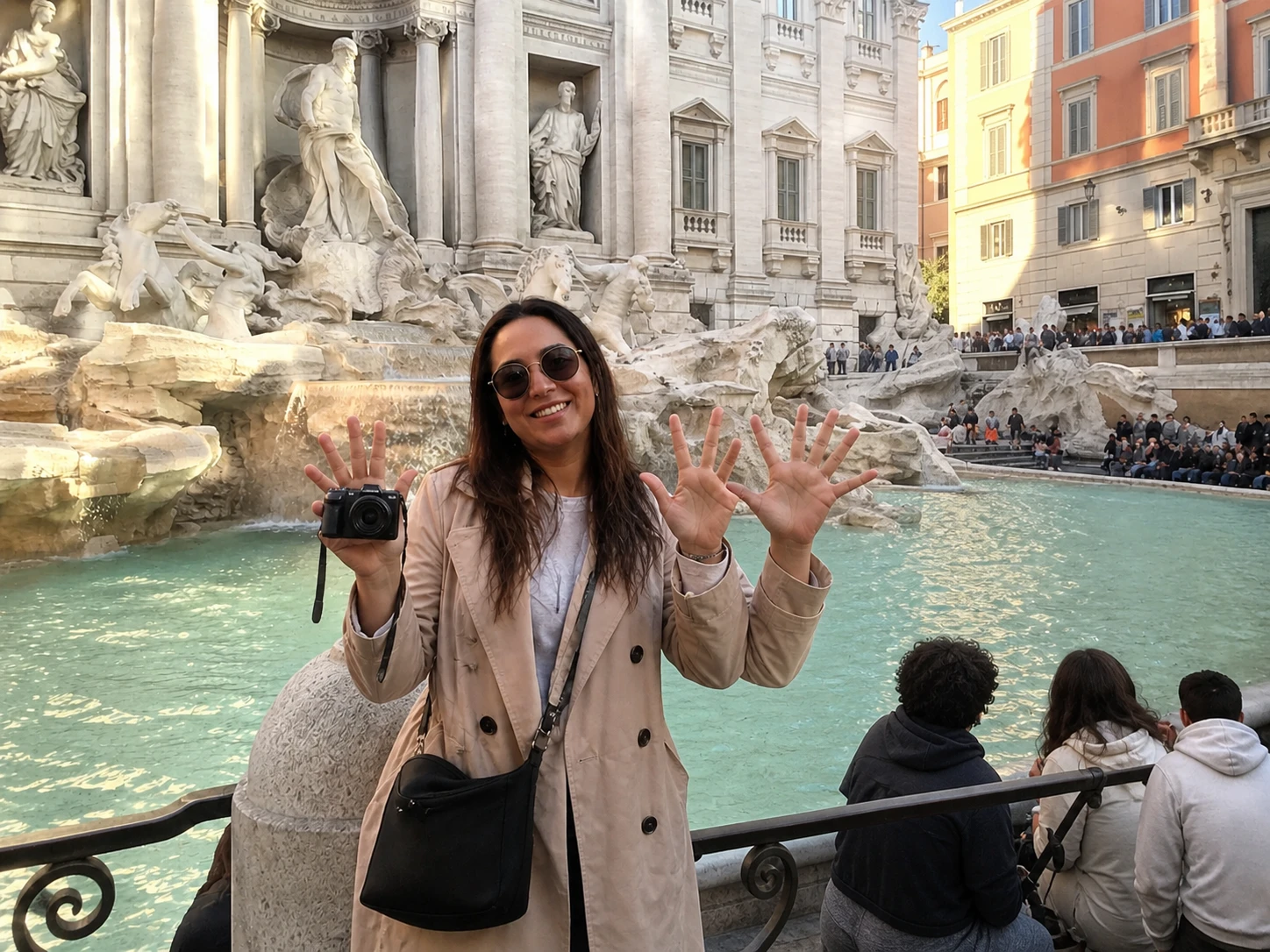
Hands are notoriously hard. With so many valid finger positions to choose from, the model often commits to too many — or bends them in ways no real hand could.
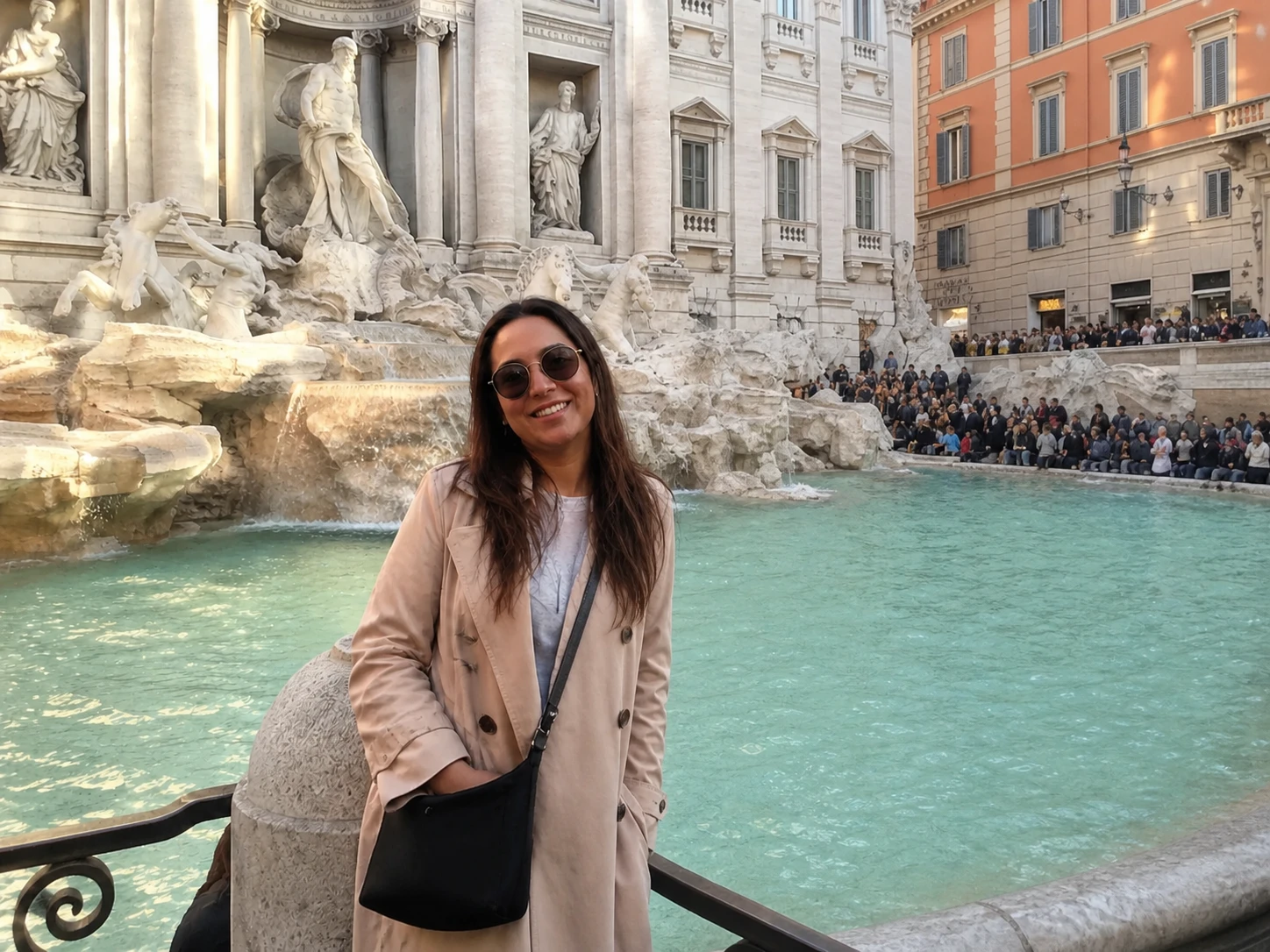
Asked to rebuild a dense crowd and intricate sculptures, the model cannot resolve that much high-frequency detail, so faces and figures melt into a smear.
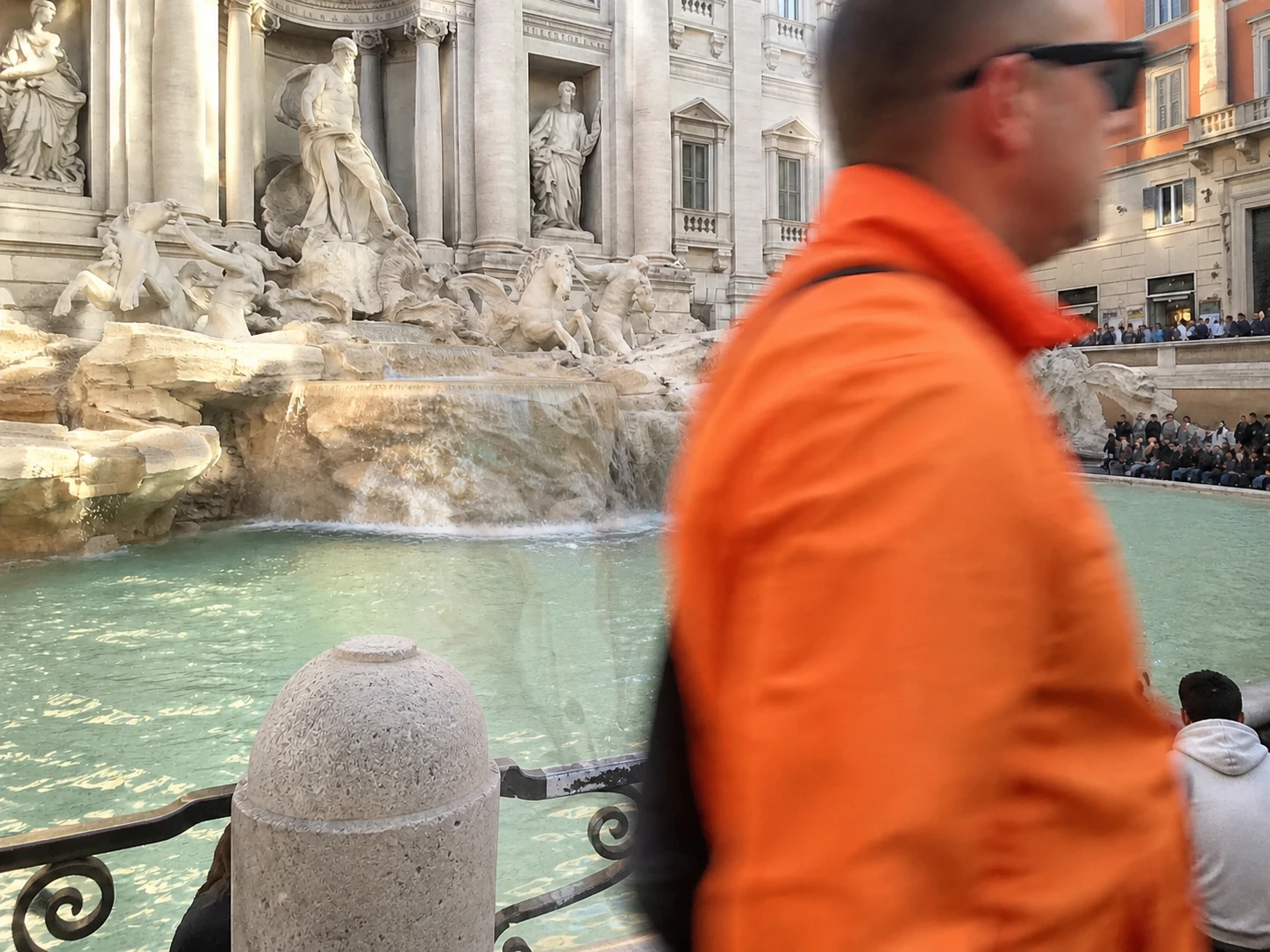
When the masked region is huge, the model has too little surrounding context to anchor on. It fills the gap with half-formed shapes and translucent ghosts of what was there.
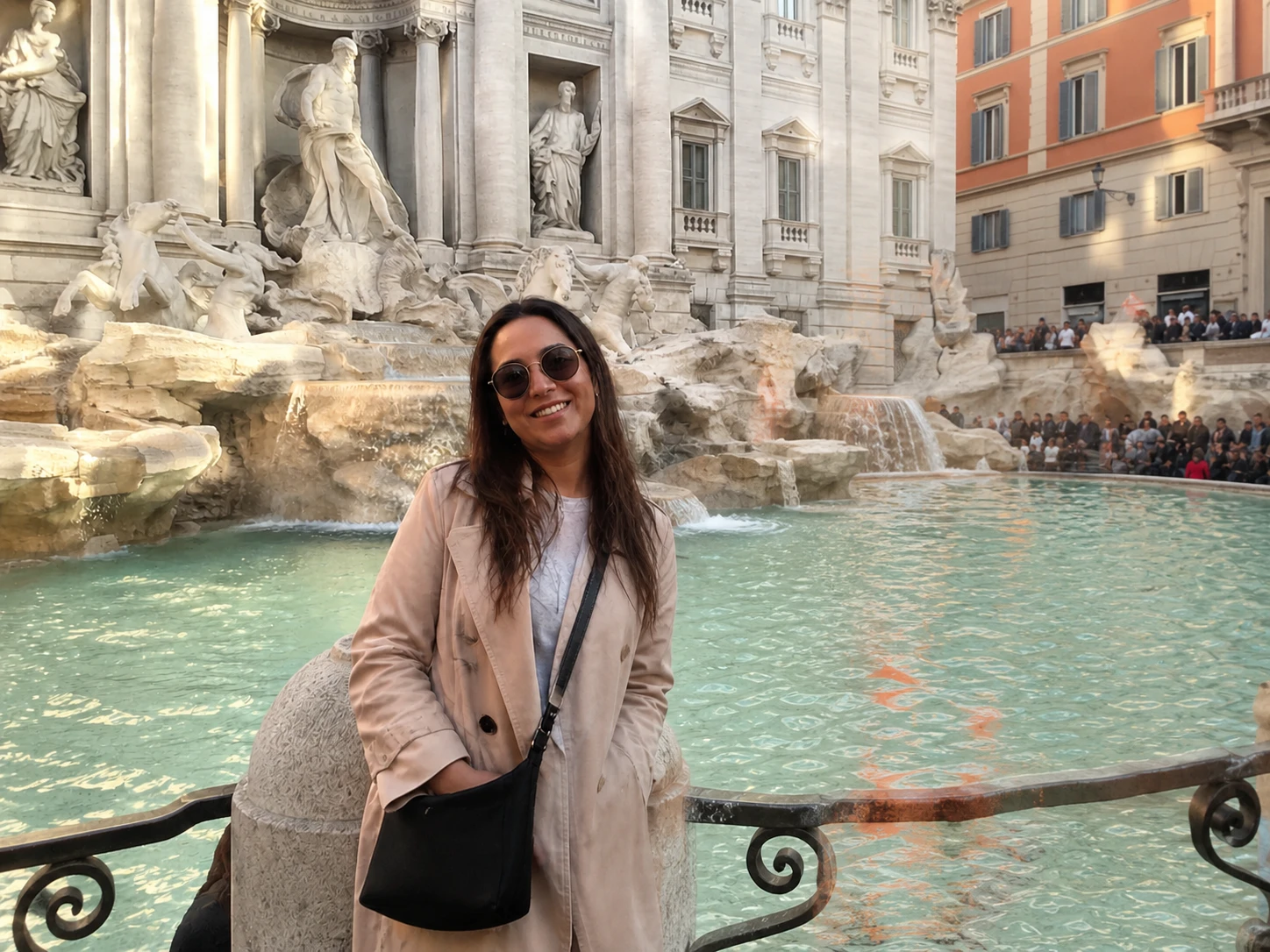
If the mask does not fully cover an object, the model treats the leftover sliver as something to keep — and smears or repeats it, leaving a colored halo where the object used to be.
This is worth internalizing before you trust any “remove anything” tool: the result is always a plausible guess, never a recovered truth. Most of the time that guess is good enough to be indistinguishable. Sometimes it is confidently wrong.
Is the result mine to use?
Yes. The AI did not create the composition, the lighting, or the subject — you did. Inpainting a small region is a transformation of your original work, not a new standalone image. Using it to clean up your own photos — product shots, social media, marketing assets — is no different in principle from a healing brush, except that the results are much better.
One boundary is worth respecting: inpainted images are not evidence. The filled pixels are a mathematical guess, not a recovered truth. For insurance photos, legal exhibits, or journalistic material, keep the original unmodified file and treat the inpainted version as an illustration, not a record.
Frequently asked questions
What is image inpainting?
+
Image inpainting is the process of filling in a missing or removed part of a photo so it blends with the rest. When you erase an object, inpainting generates new pixels for the gap based on the surrounding texture, lighting, and structure — making the edit look like nothing was ever there.
Can AI really remove any object from a photo?
+
It can attempt any object, but results vary. Small items over a regular background — a sign on a wall, a person on grass — come out clean. Large objects or busy backgrounds give the model more to invent, so it is more likely to produce smudges or odd artifacts.
Does removing an object reconstruct what was behind it?
+
No. The AI has no record of what was hidden, so it cannot recover it. Instead it invents a plausible continuation of the surroundings. The result is a convincing guess, not the real scene behind the object — an important distinction for photo evidence or documentation.
Is AI inpainting the same as Photoshop Generative Fill?
+
They are the same family of technique. Generative Fill is Adobe’s branded inpainting feature. Under the hood, both mask a region and let a diffusion model generate new pixels that match the surrounding context. Most modern object-removal tools work this way.
Why does AI inpainting sometimes add extra fingers or warped textures?
+
Large or ambiguous masked regions give the model too much freedom, so it hallucinates details that do not fit — extra fingers, melted text, or repeating textures. The fix is usually a smaller, more precise mask, which constrains the model to a more predictable result.
Is there a free tool to remove objects from photos?
+
Yes. Erasio runs this kind of inpainting directly in your browser, free and with no account needed for image tools. You brush over what you want gone and the AI fills in the background, using the same techniques explained on this page.
Try it on your own photo
Now that you have seen how the guess is made, watch it work on something of your own. Our cleanup tool runs this kind of inpainting right in your browser — free, no account needed.
Open the free cleanup toolYou can also remove a specific object, erase a watermark, or wipe out text — all powered by the same inpainting techniques explained above.