
Need to remove a watermark from a photo without ruining the background? The fastest method is usually an AI watermark remover: upload the image, remove the mark, and let AI rebuild the covered pixels.

Before you edit, use the right image. Only remove watermarks from photos you own or have permission to modify. This guide is for legitimate cleanup work: restoring exports, fixing branded drafts, cleaning product photos, or editing licensed assets.
If the problem is broader than a watermark — a photobomber, date stamp, trash can, or messy background — use Erasio's cleanup pictures tool instead of cropping the shot.
Quick answer: the best ways to remove a watermark from a photo
The best method depends on the watermark:
- Use an AI watermark remover for the fastest cleanup.
- Use Photoshop when you need professional control.
- Use GIMP if you want a free desktop editor.
- Use the clone stamp for small marks on simple textures.
- Crop or reframe when the watermark sits near the edge.
For most users who need to remove a watermark from a photo quickly, AI is the simplest first step: it removes the mark and reconstructs the missing background automatically. Manual tools are better when the watermark crosses faces, hands, product edges, or repeating patterns that need finishing.
Method 1 - Use an AI watermark remover
An AI watermark remover is the easiest way to remove watermark from photo files online. Instead of painting pixel by pixel, the tool identifies the marked area, removes the overlay, and fills the gap with image inpainting. That makes it useful for logos, text marks, timestamps, semi-transparent overlays, and social app watermarks.
Workflow:
- Upload the photo you want to clean.
- Let the AI detect the watermark, or mark the area manually if the tool supports it.
- Run the cleanup.
- Check the result at full size.
- Download the edited image.
For the fastest workflow, try Erasio's free watermark remover. It runs in the browser, supports JPEG, PNG, and WebP, and is designed for people who want a clean result without learning layers, masks, or retouching tools.
If your image came from Google's Gemini and still shows the visible watermark, the dedicated Gemini watermark remover removes it locally in your browser without uploading the file.
AI works best when you remove watermark from image files where the background behind the watermark is something a model has seen a lot of: sky, fabric, flat product surfaces, or solid-color walls. The tricky cases are faces, where even small reconstruction errors are obvious, plus large diagonal stock-photo watermarks and repeating patterns, because the model has to invent what's underneath and sometimes gets it visibly wrong.

Method 2 - Remove a watermark in Photoshop
Photoshop is the strongest option when quality matters more than speed. It gives you Remove Tool, Content-Aware Fill, Healing Brush, Patch Tool, and Clone Stamp.
Photoshop workflow:
- Open the image and duplicate the layer.
- Select the watermark with the Lasso Tool or Object Selection Tool.
- Try Remove Tool or Content-Aware Fill first.
- Clean rough edges with Healing Brush or Patch Tool.
- Zoom in and fix repeated texture with Clone Stamp.
- Export a new copy so the original file stays untouched.
Photoshop is best for professional retouching, product photos, portraits, and images where the watermark crosses important details. You need a paid app and enough judgment to avoid smudged backgrounds.
If you already use Photoshop, this is often the highest-control method to remove watermark from photo files where precision matters. For a simple logo or text watermark, a free online AI tool is usually faster.
Method 3 - Remove a watermark in GIMP
GIMP is the free desktop alternative. It is not as automatic as modern AI tools, but it can remove watermarks well. The main tools are Heal, Clone, selection tools, and layers.
GIMP workflow:
- Open the photo and duplicate the layer.
- Zoom in until the watermark edges are easy to see.
- Use Heal for soft blending on natural textures.
- Use Clone for areas that need exact nearby pixels.
- Work in short strokes instead of brushing over the whole mark at once.
- Compare before and after at normal viewing size.
GIMP works best on small watermarks, corner logos, simple backgrounds, and low-stakes edits. It gets harder when the mark covers a face, product label, or complex object edge. The built-in Heal and Clone tools are enough for many photo watermark remover tasks.
GIMP is worth it if the watermark is small: corner logos, date stamps, simple overlays, and you do not mind spending 15-20 minutes on it. For anything bigger, or if you want the fastest way to remove watermark from a photo in under a minute, start with AI.
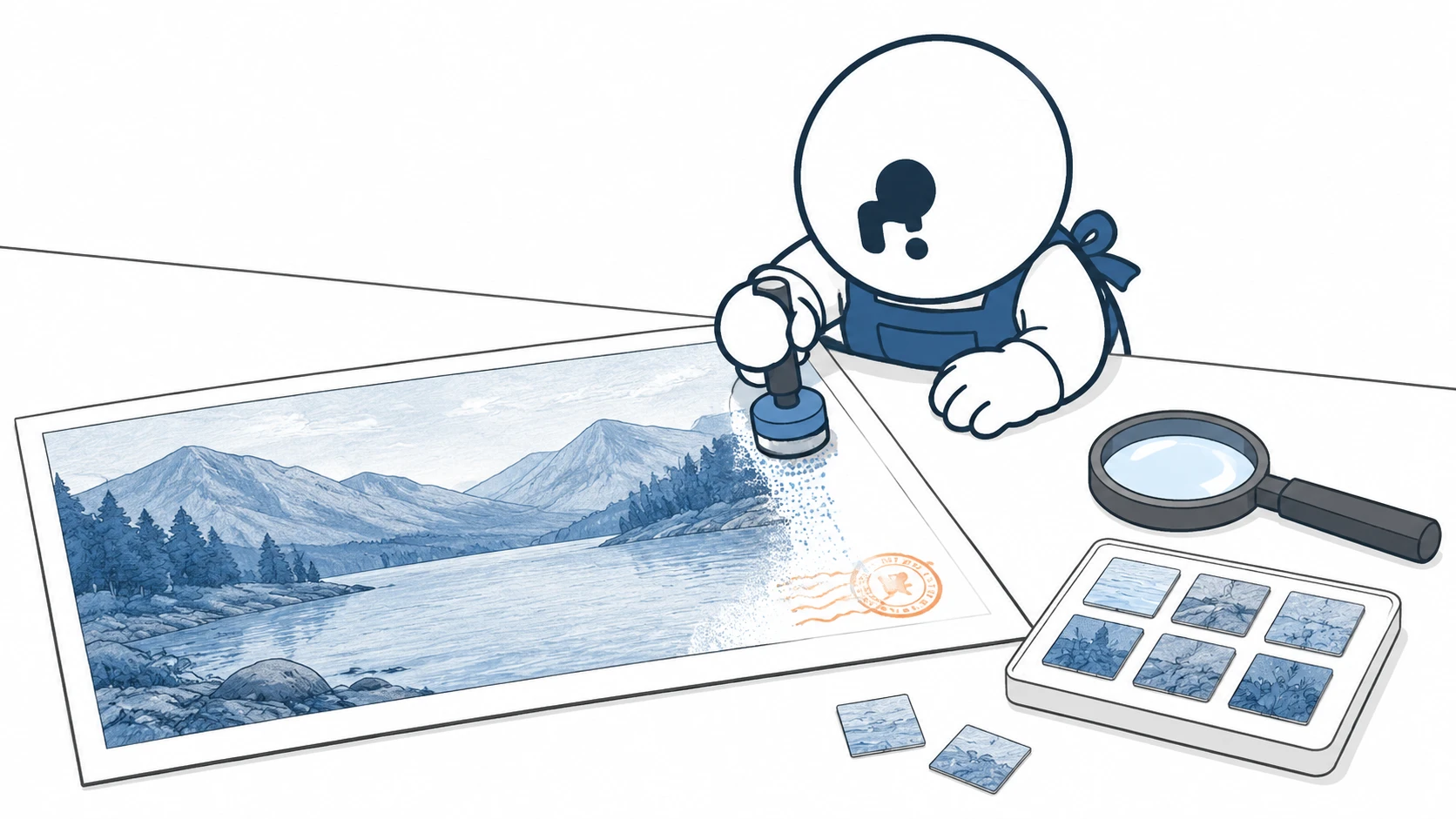
Method 4 - Use the clone stamp manually
The clone stamp still matters. It copies pixels from one part of the image and paints them over another. If the watermark is small and the background is consistent, clone stamping can produce a clean edit.
Use it like this:
- Zoom into the watermark.
- Choose a soft brush.
- Sample a nearby clean area.
- Paint over a small section of the watermark.
- Resample often so the texture does not repeat.
- Finish with a healing brush if the editor has one.
The clone stamp is not good for huge watermarks or faces because it cannot invent hidden detail. Its strength is precision: small corner marks, dust-like text, date stamps, and simple background cleanup.
The mistake to avoid is painting one large copied patch over the whole watermark. That creates obvious repeated texture. Small strokes and frequent resampling produce better results.
Method 5 - Crop, reframe, or rebuild the photo
Sometimes the best method is not removal at all. If the watermark is near the edge, cropping can solve the problem. If the photo has extra margin, reframing may preserve the subject while removing the mark.
Works when:
- The watermark is in a corner or border.
- The subject is not too close to the edge.
- The final use does not require the original aspect ratio.
- You need a clean image quickly and can sacrifice a small area.
Cropping fails when the watermark crosses the main subject, covers text, or sits in the center. In those cases, use AI or a manual retouching tool.
For design files and product mockups, rebuilding from the source file is often cleaner than repairing a flattened image.
Which method is best?
| Method | Best for | Skill level | Speed | Quality |
|---|---|---|---|---|
| AI watermark remover | Most everyday photos | Low | Fast | High |
| Photoshop | Professional retouching | Medium | Medium | High |
| GIMP | Free desktop editing | Medium | Slow | Good |
| Clone stamp | Small marks on simple backgrounds | High | Slow | Good |
| Crop or reframe | Edge watermarks | Low | Fast | Limited |
If you want the shortest path, start with AI. It gives you a strong result and often finishes the job in one pass. If the watermark covers complex detail, use Photoshop or GIMP for final cleanup.
The better workflow is sequence: let AI handle the broad repair, then manually fix the spots where it guessed wrong, usually around faces, repeating patterns, or sharp product edges.

FAQ
Can I remove a watermark from a photo online?
Yes. Online AI tools can remove a watermark from a photo directly in the browser. Upload the image, run the cleanup, review the result, and download the edited file.
What is the easiest way to remove a watermark from a photo?
The easiest method is an AI watermark remover. It requires the least editing skill because the tool handles detection, removal, and background reconstruction automatically.
Can Photoshop remove watermarks?
Yes — though how well it works depends on the background. Remove Tool and Content-Aware Fill handle clean surfaces well. For portraits or complex edges, expect to do some cleanup by hand.
Can GIMP remove watermarks for free?
Yes, if you have the patience. Heal and Clone can remove most watermarks, but GIMP will not reconstruct missing detail the way AI inpainting does. You are painting pixels, not generating them.
Will removing a watermark from a photo reduce image quality?
It can if the repair is blurry, smudged, or over-compressed. Use the highest-resolution original you have, review the result at full size, and avoid repeatedly exporting the image with heavy compression.
Is it legal to remove a watermark from a photo?
Only remove watermarks from images you own or have permission to edit. Do not use watermark removal to bypass copyright or rights management.
If you need a clean result without learning advanced editing tools, start with Erasio's free online watermark remover. Upload the photo, remove the mark with AI, and use Photoshop or GIMP where the image needs extra manual polishing.
Working with video instead of photos? Erasio also has an AI video watermark remover — upload your MP4, MOV, or WebM and the AI removes logos, text overlays, and channel bugs frame by frame, without blur or cropping.