
Text gets stuck in images all the time - stock photo watermarks, subtitles burned into screenshots, date stamps on old photos, supplier labels on product shots. Getting rid of it used to mean opening Photoshop and spending ten minutes with the Clone Stamp tool.
This guide covers four methods to remove text from any image, starting with the quickest. Jump to the comparison table if you want to find the right method for your situation first.

Method 1 - Use a free AI text remover online
No install, no account needed. Here's how it works:
Step 1 - Upload your image
Go to Erasio's free remove text from image tool. Upload a JPEG, PNG, or WebP file up to 10 MB. You can drag and drop or paste directly from your clipboard.
Step 2 - Let the AI remove the text
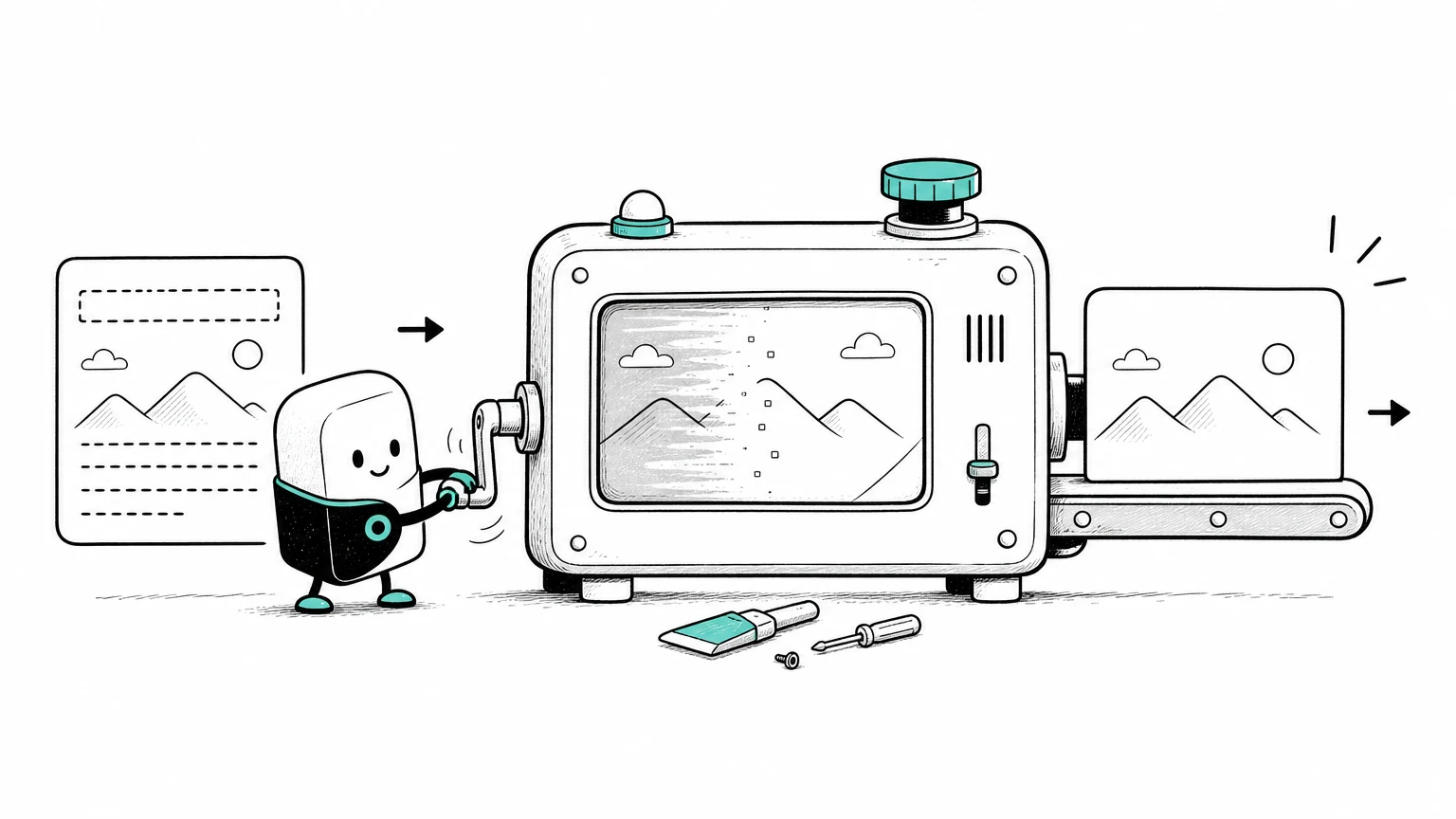
Click Remove Text. Erasio's AI automatically detects text regions in the photo and fills the background behind them. No manual selection is needed in most cases.
Step 3 - Download the clean result
Preview the output before saving. The background is rebuilt using surrounding pixels - no white patch, no smudge. Click Download to get your full-resolution image.
The whole process takes under 30 seconds for most photos.
Pro tip: If the AI does not pick up a faint or very small piece of text, switch to Erasio's manual eraser - draw around the text by hand and remove it directly. Same tool, a few extra seconds.
Note: Handwritten text works with the same tool. The AI detects and removes handwriting when the ink has clear contrast against the background — signatures, labels, and printed handwriting all clean up cleanly in one pass. Very light pencil marks or overlapping cursive may need the manual eraser instead.
Use this first when the text is part of an everyday cleanup job - captions, product labels, screenshots, date stamps, watermarks, or supplier text. If the photo also has people, objects, or background clutter, use Erasio's cleanup pictures tool for the broader brush-based workflow.
Method 2 - Remove text in Photoshop
Photoshop gives you the most precise control over the result, especially on complex or patterned backgrounds where AI fills can look off. It takes longer, but the quality ceiling is higher.
Using Content-Aware Fill
- Open your image in Photoshop.
- Select the Lasso Tool and draw a loose selection around the text.
- Go to Edit -> Content-Aware Fill.
- Let Photoshop sample the surrounding area and generate a fill.
- Adjust the sampling region if the preview looks wrong.
- Click OK, then flatten and export.
Cleaning up edges with the Clone Stamp
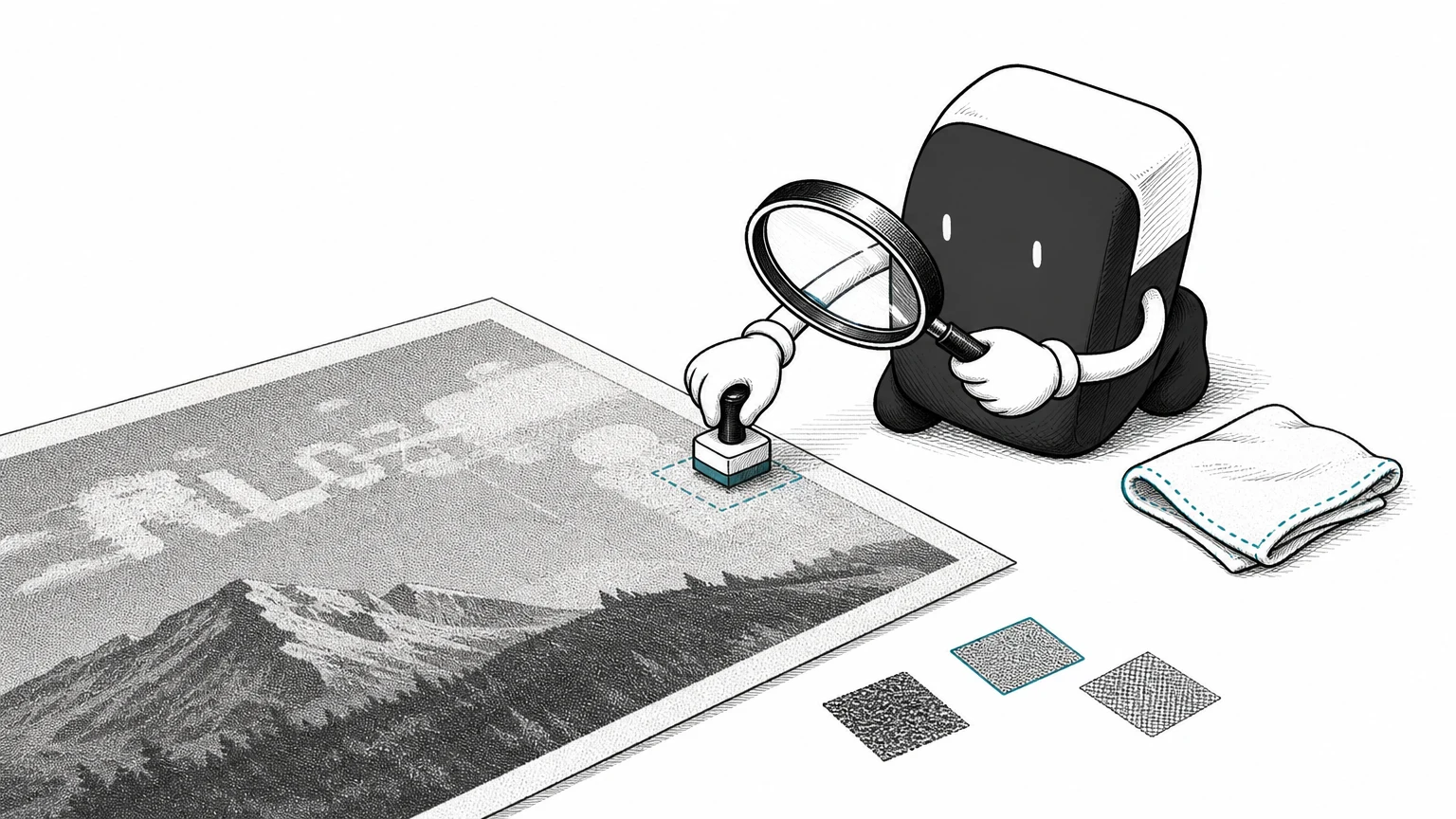
After Content-Aware Fill, use the Clone Stamp Tool to blend any edges that look unnatural. Hold Alt to sample a clean patch of background, then paint over artifacts with short strokes.
Best for: complex backgrounds such as grass, fabric, patterned surfaces, or any time you need professional retouching quality. It requires a Photoshop subscription and is usually not worth it for occasional use.
Method 3 - Remove text in Canva
If you are already working in Canva, Magic Grab lets you select and delete text directly on a photo without switching apps.
- Open your image in Canva and click Edit photo.
- Under the Magic Studio tab, choose Grab Text.
- Select the text you want removed and click Grab.
- Delete the lifted text layer.
- Let the background fill automatically.
Limitation: Canva requires an account, and Magic Studio features are behind a paid plan. Fill quality on complex backgrounds is inconsistent compared with dedicated AI tools.
Best for: users already in Canva who need a quick cleanup without leaving the platform.
Method 4 - Remove text from an image on iPhone or Android
You do not need a desktop. Erasio works in any mobile browser - no app download, no account.
- Open erasio.app in Safari on iPhone or Chrome on Android.
- Tap Upload Photo and choose your image from the camera roll.
- Tap Remove Text and wait a few seconds.
- Download the cleaned image directly to your device.
Full HD output works on mobile. This is the fastest way to remove text from a photo on iPhone without installing anything.
iPhone's built-in Markup tool in the Photos app can paint over text with a background-matching color, but it is a cover-up, not real removal. The text is still there under the paint layer, and the patch often looks flat.
Best for: on-the-go edits, social media photos, camera roll images, and screenshots.
Which method should you use?
Pick based on your situation:

| Situation | Best method | Free | Account needed |
|---|---|---|---|
| Quick removal, any background | Erasio AI | Yes | No |
| Text not auto-detected | Erasio manual eraser | Yes | No |
| Complex textures, fine control | Photoshop | No | Paid app |
| Already working in Canva | Canva Magic Grab | Limited | Yes |
| On iPhone or Android | Erasio in browser | Yes | No |
Start with an AI tool. Switch to Photoshop only when the background is too complex for the fill to look clean.
Frequently asked questions
Can I remove text from an image on my iPhone?
Yes. Open erasio.app in Safari on your iPhone, upload your photo, and tap Remove Text. The full tool, including HD download, works in the mobile browser with no app to install and no account required.
Can I remove text without blurring the image?
Yes. AI inpainting tools like Erasio reconstruct the background behind the text using surrounding pixels. The result is sharp and seamless, not blurred or smudged. Your image downloads at the original resolution.
How can I remove text from an image for free?
Upload your image to a free AI text remover like Erasio - no account, no payment, and no watermark added to your result. Free users can process a set number of images per day; upgrade to Pro for unlimited use.
Does AI text removal work on handwritten text?
In most cases, yes. AI text removers handle handwriting when the strokes have clear contrast against the background. Very light pencil marks or overlapping cursive may need a second pass or manual selection.
Remove text from your image
The fastest way to get started: upload your image to Erasio and remove the text in seconds - free, no sign-up required.