
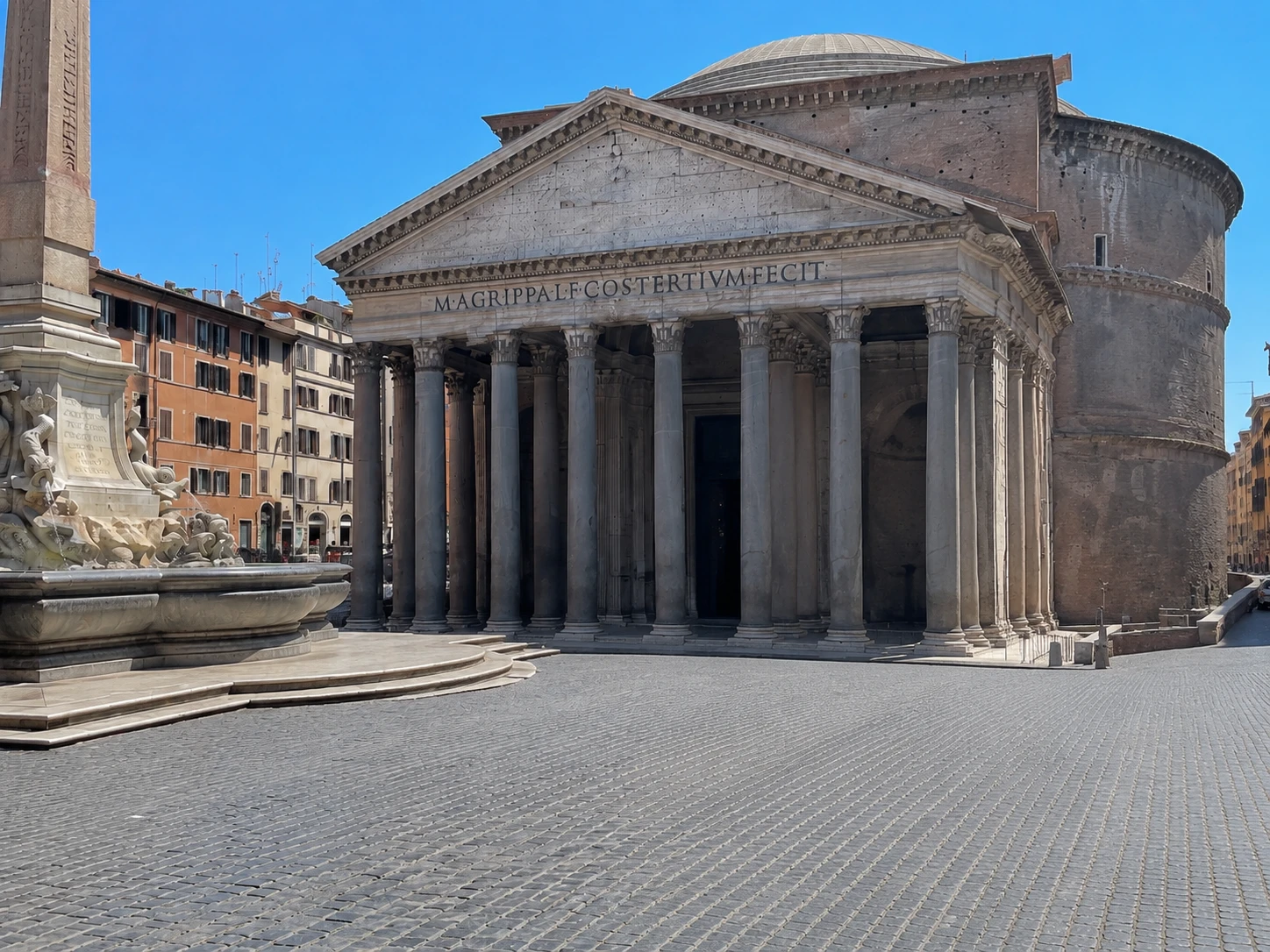
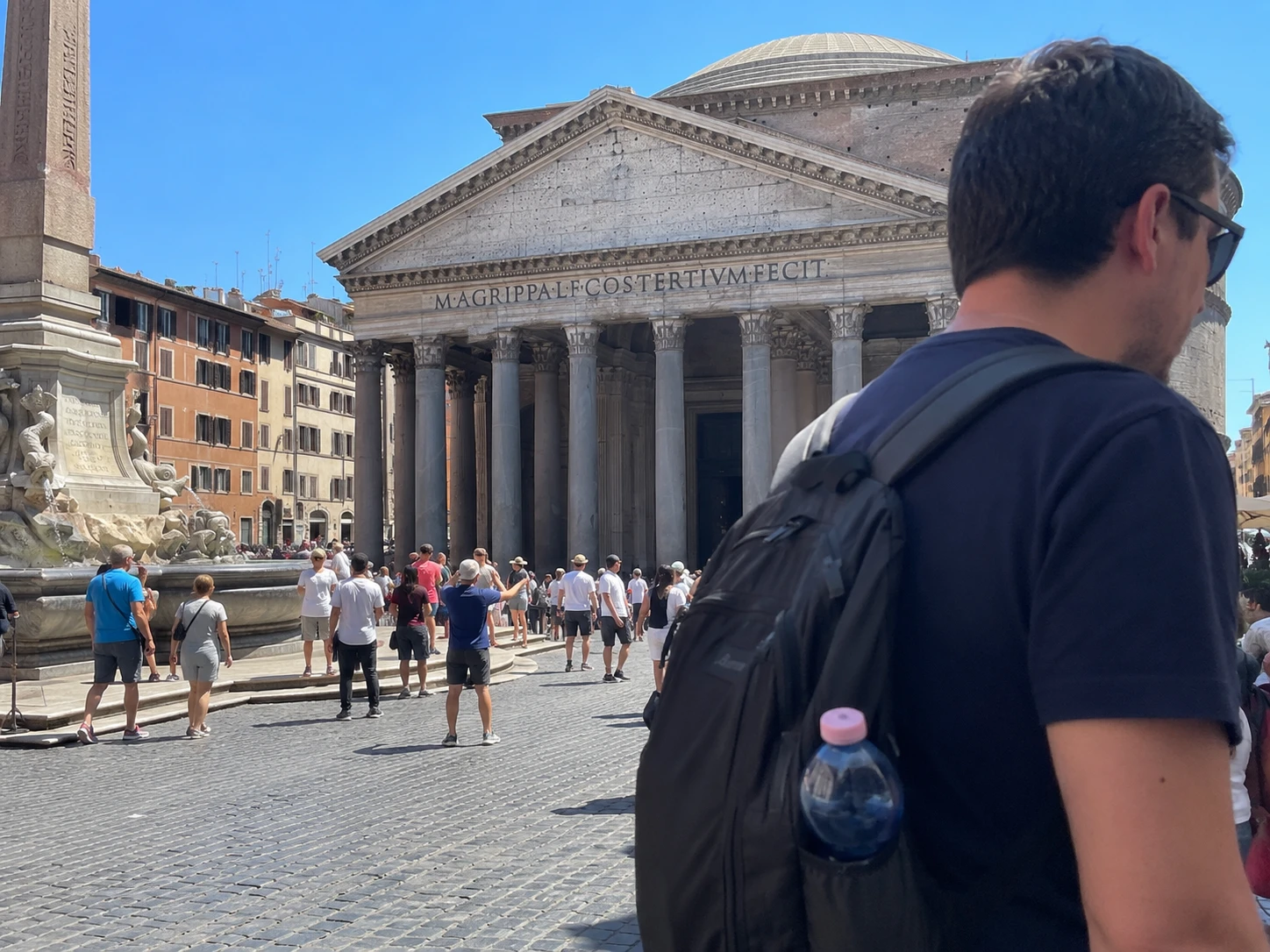
Remove People from Photos
Use Erasio's AI object remover to clear out strangers or unwanted figures from travel shots, real estate listings, or event photography. The background is reconstructed seamlessly.
Paint over anything you don't want. Erasio's AI fills it back in like it was never there.
Need to remove an object from an image? Erasio is a free AI-powered object remover that cleanly removes any unwanted element from your photo — no Photoshop skills required. Whether you need to remove a person, a distracting background object, text overlays, or anything blocking your subject, simply brush over the area and our AI intelligently reconstructs the background. Remove objects from images in seconds and download a clean, high-quality result.
Drag and drop your photo into Erasio's AI object remover. Supports JPG, PNG, and WebP — no account needed to get started.
Use the brush tool to mark the object, person, text, or area you want to erase. Make the brush larger for big objects, smaller for fine edges.
Click "Remove" and our AI removes the object from your image instantly — filling in the background naturally. Download your result in full resolution.
Erasio's AI object remover handles a wide range of editing scenarios:
Use Erasio's AI object remover to clear out strangers or unwanted figures from travel shots, real estate listings, or event photography. The background is reconstructed seamlessly.

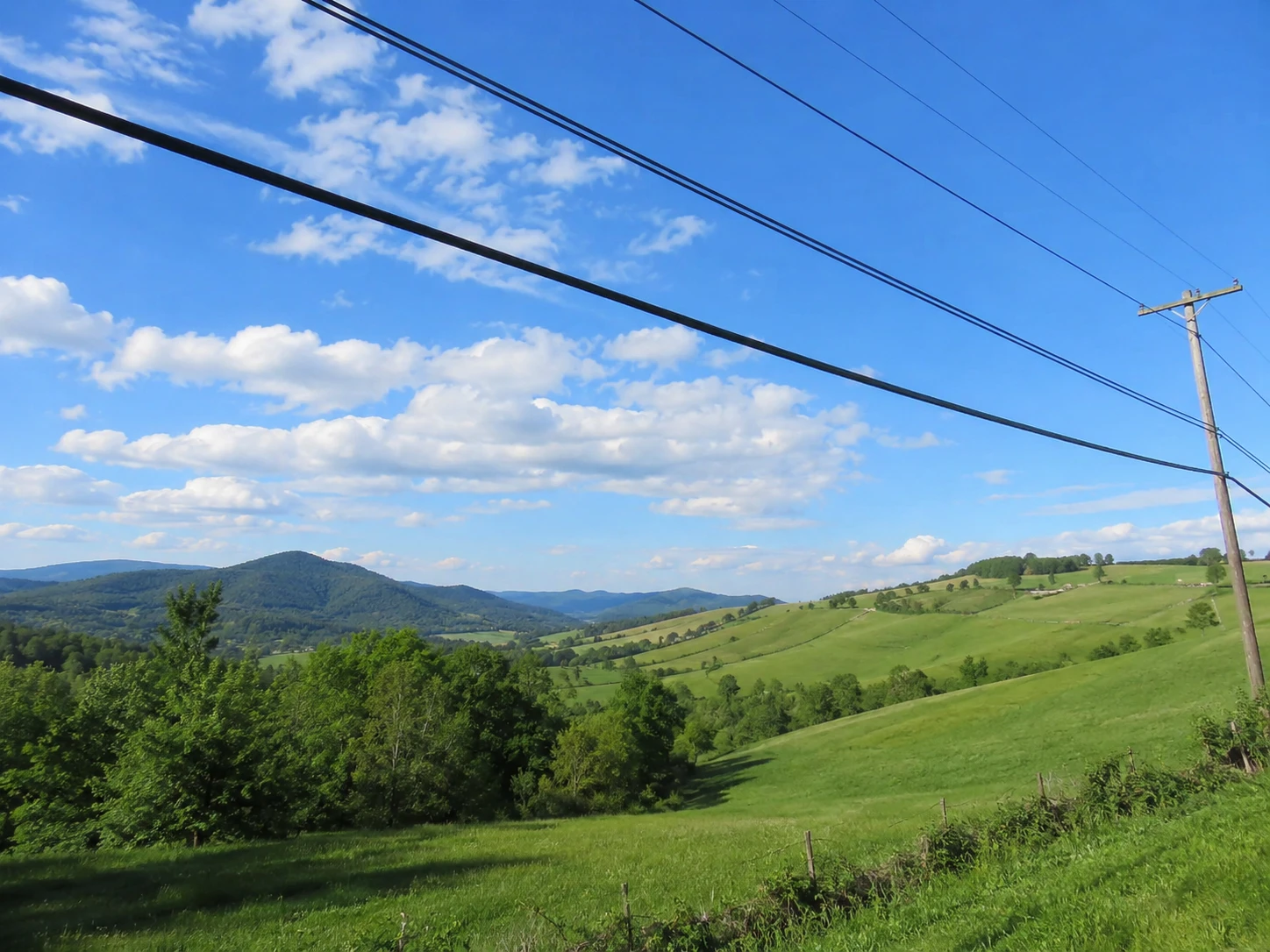
Power lines, trash cans, parked cars, road signs — remove any object from your image that pulls attention away from your subject.


Remove text overlays, embedded captions, brand logos, or sticker annotations from images before repurposing them.
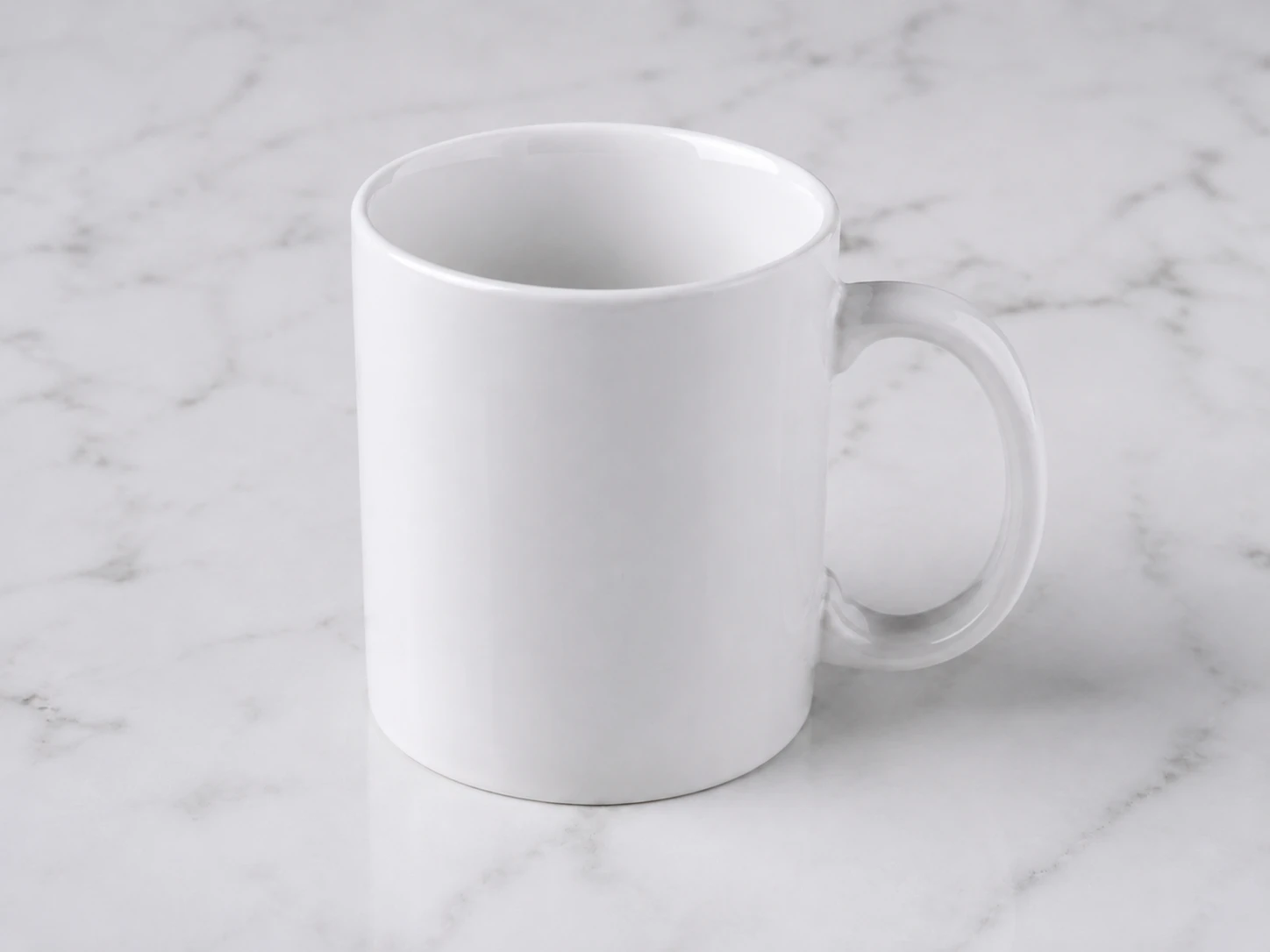
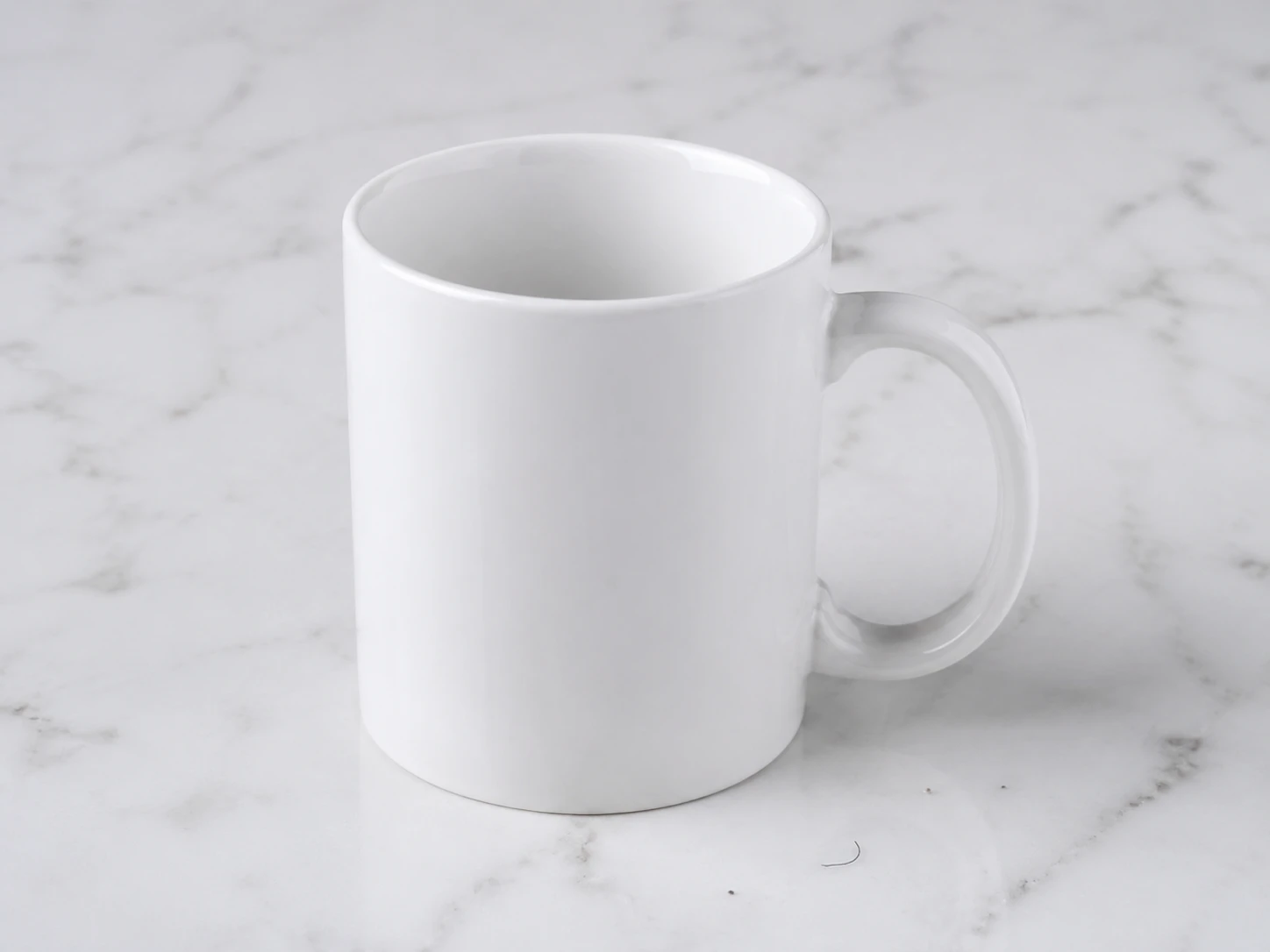
Remove dust, scratches, stray objects, or imperfections from e-commerce product images for a polished, retail-ready look.


Remove furniture, cords, personal items, or staging distractions before listing a property online.
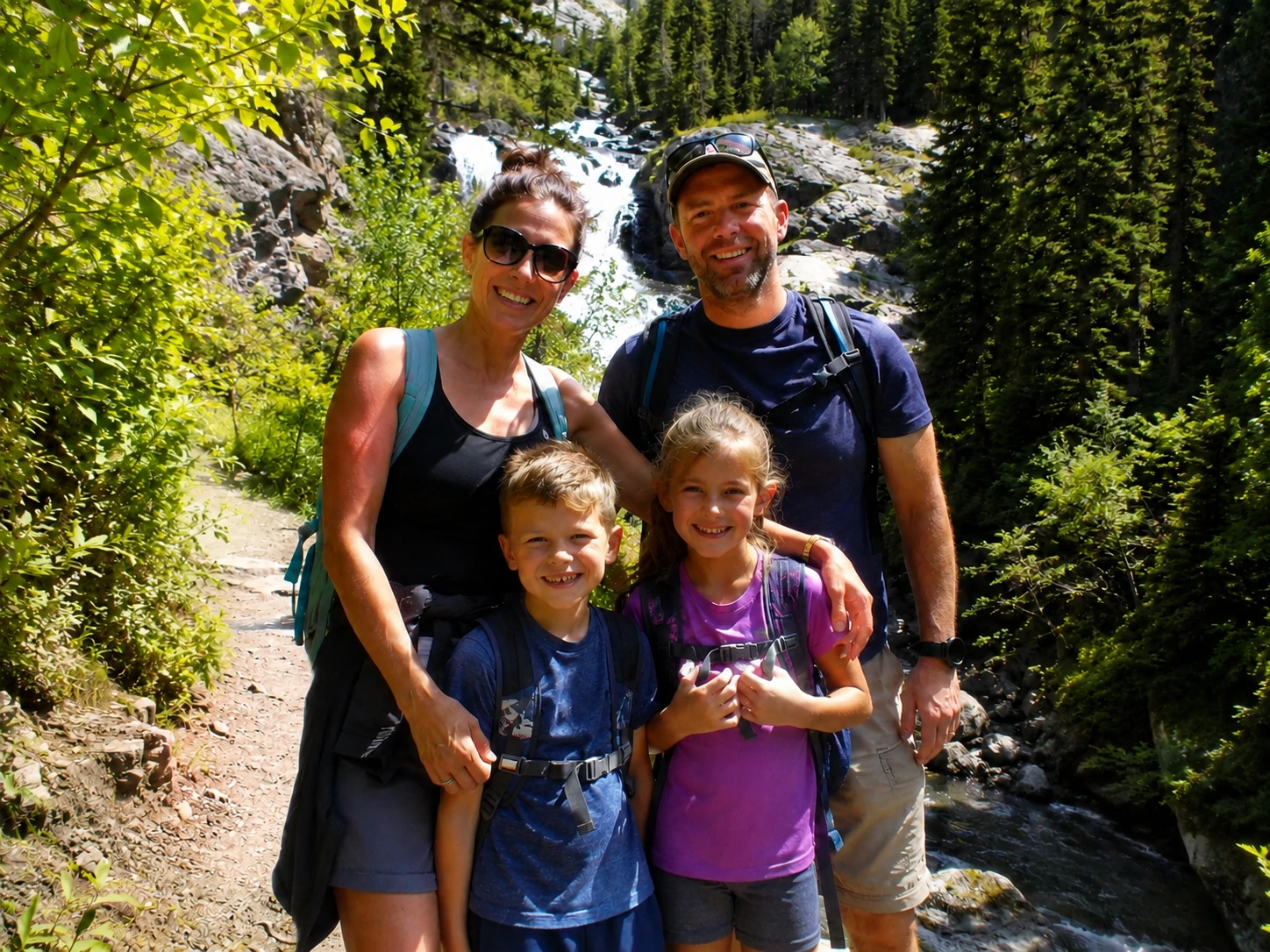
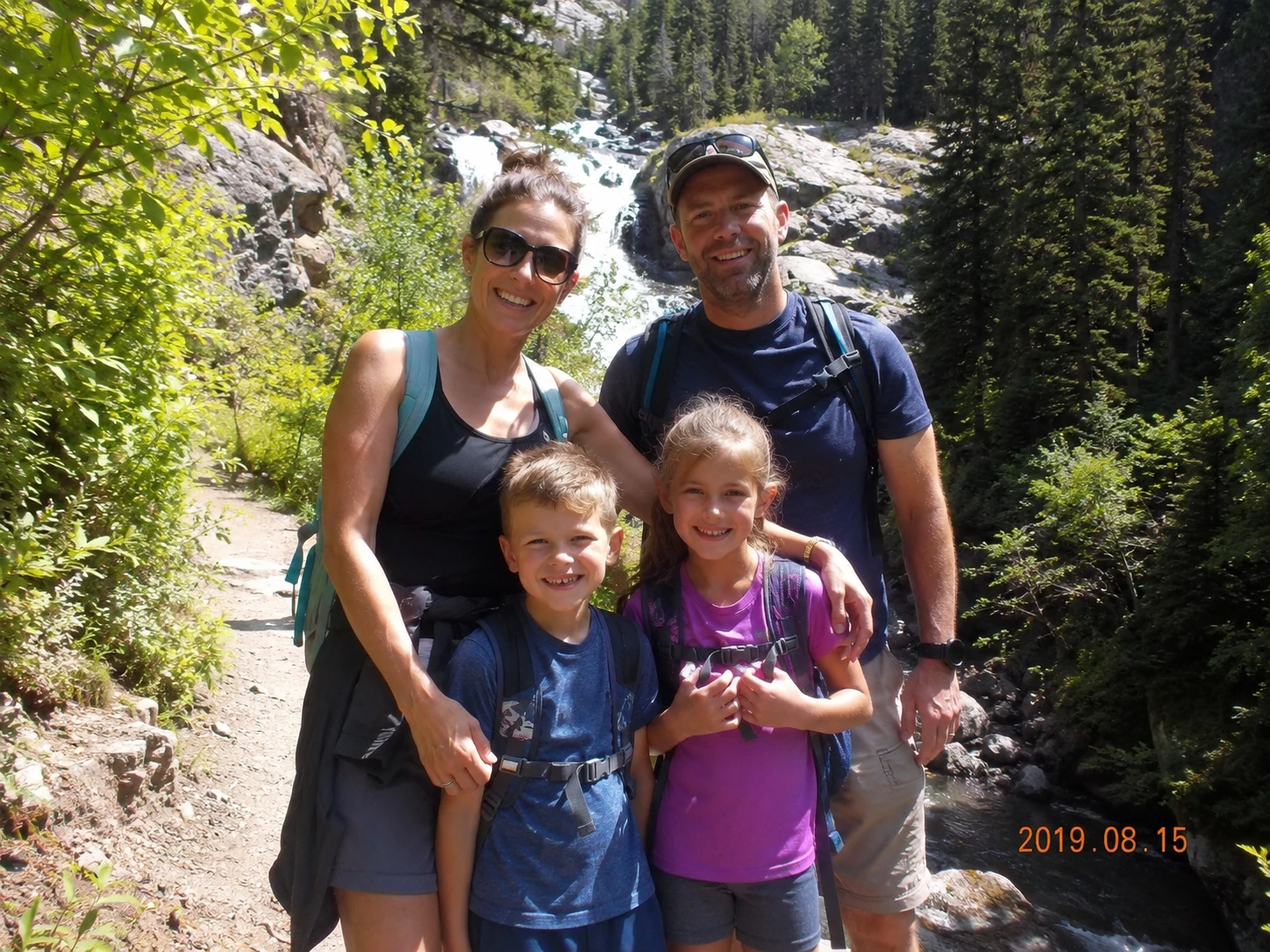
Remove date stamps, sample watermarks, or copyright notices from your own photos for clean archival copies.


Paint exactly the area you want to remove — adjust brush size for both large sweeping removals and pixel-level details. No accidental background deletions.
After you remove an object, Erasio automatically fills in the background — no blurry patches, no visible seams. What was there simply disappears.
Open your browser, upload your photo, and remove objects from images instantly. No sign-up, no app download, no subscription needed to try the tool.
Get clean, high-resolution results at no cost. Erasio is built to deliver professional-grade object removal accessible to everyone.
From smartphone snapshots to high-res DSLRs, Erasio handles portraits, landscapes, product shots, interiors, and more.
Need a more focused edit? Use Remove Text from Image for captions, Remove Emoji from Photo for stickers, Remove Watermark from Video for footage, or go back to the AI watermark remover. Searching for cleanup pictures? We have a dedicated cleanup pictures page for travel shots, mobile users, and everyday photo cleanup.
01
Upload your photo to Erasio, use the brush tool to paint over the object you want to erase, and click "Remove." The AI processes your image and fills in the background automatically. No payment or account required — it's completely free to use.
02
Yes. Brush over the person you want to remove, and Erasio's AI will remove them from the image and reconstruct the background. It works best when the background has a clear pattern or texture — like grass, sky, walls, or pavement.
03
Yes. You can use Erasio to remove text overlays, date stamps, and sample watermarks from your own images. Simply paint over the text area and the AI will remove it and blend the background seamlessly. For automatic text detection, use the dedicated remove text from image tool; for broader watermark cleanup, start with the AI watermark remover.
04
In most cases, yes. Erasio's AI object remover uses inpainting to analyze the surrounding area and reconstruct a natural-looking background. Results are best when there is enough surrounding context — for example, a clear sky, tiled floor, or textured wall around the area you removed.
05
Erasio supports JPG, JPEG, PNG, and WebP formats. You can upload photos directly from your device or paste a URL.
06
For best performance, images up to 10MB work smoothly. Very large files may take a few extra seconds to process.
07
No. You can remove objects from photos without creating an account. Just upload and start editing — no email or password required.
08
Photoshop is powerful but requires installation, a paid subscription, and editing expertise. Erasio is a free browser-based AI tool — no software, no learning curve. Upload, brush, done. It's built for speed and simplicity, not full photo editing workflows.
Try the Free AI Object Remover — Remove Objects from Any Photo, No Sign-Up